Connect the camera: Bluetooth pairing and camera Wi-Fi (iOS and Android)
Pathset connects to your camera directly via Bluetooth and Wi-Fi, on iOS and Android, without the manufacturer's app.
How to connect:
- Switch on the camera and keep it within range.
- In Pathset, tap "Connect" at the bottom. Pathset finds the camera via Bluetooth; the Insta360 Luna Pro/Ultra announces itself with the end of its serial number. If several cameras are ready, Pathset shows a selection sheet.
- The first time: confirm pairing on the camera display (on the Osmo models via the PIN shown) and then allow joining the camera's Wi-Fi network:
- iOS: confirm the Bluetooth prompt and the one-time system prompt to join the Wi-Fi network.
- Android: on first launch, allow the "Nearby devices" (Bluetooth) permission and confirm the "Connect to device" system dialog promptly.
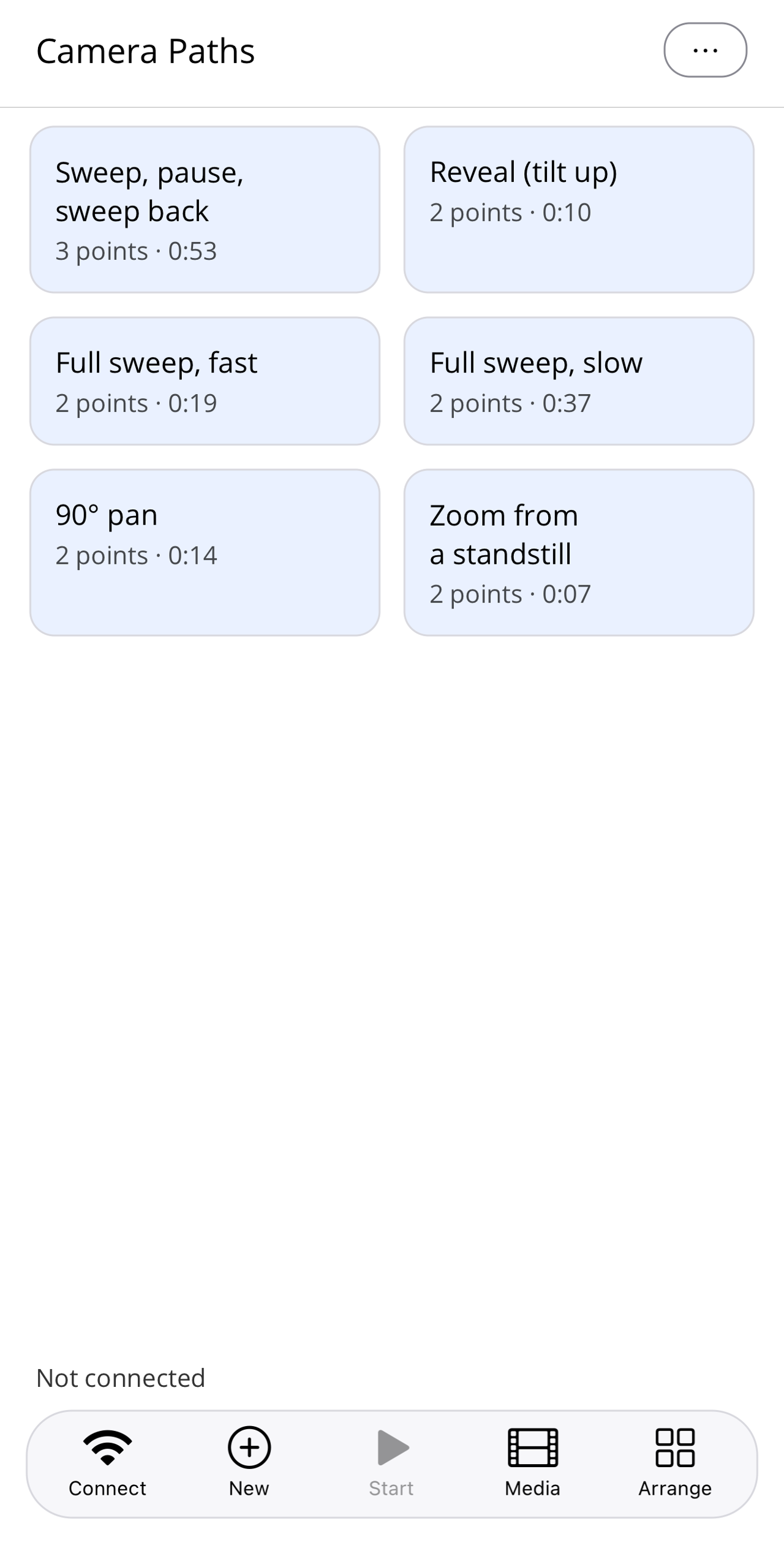
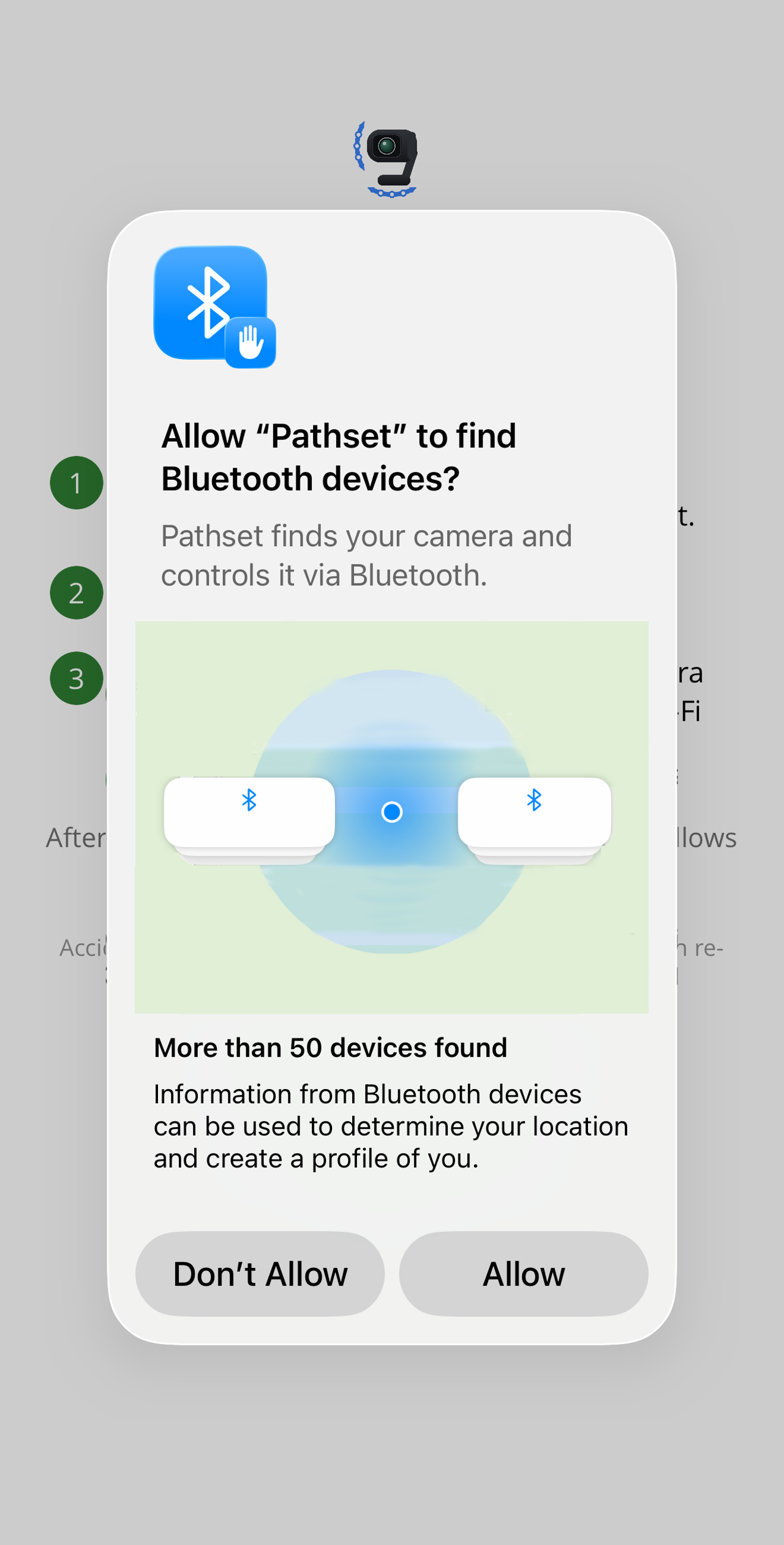
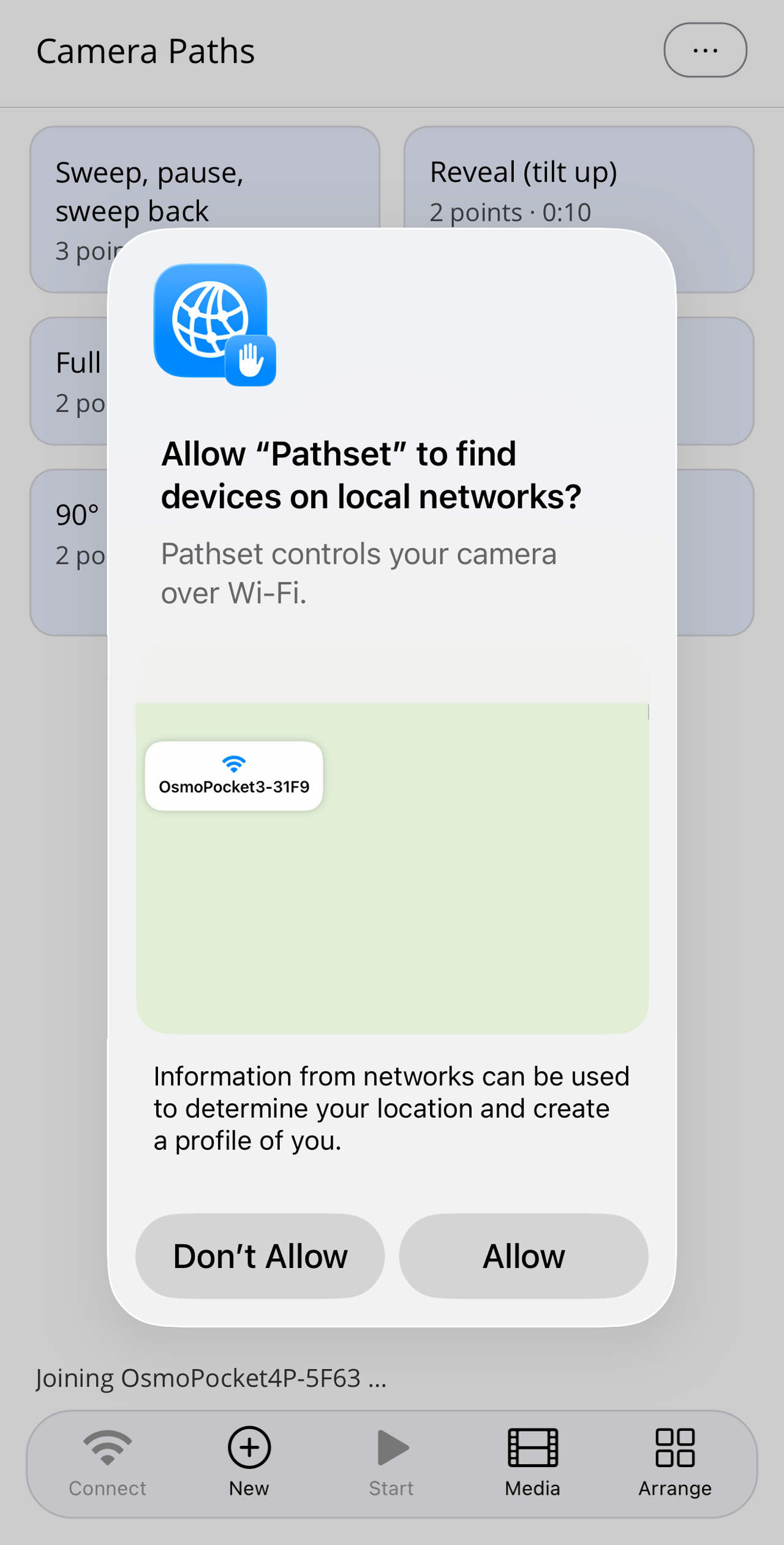
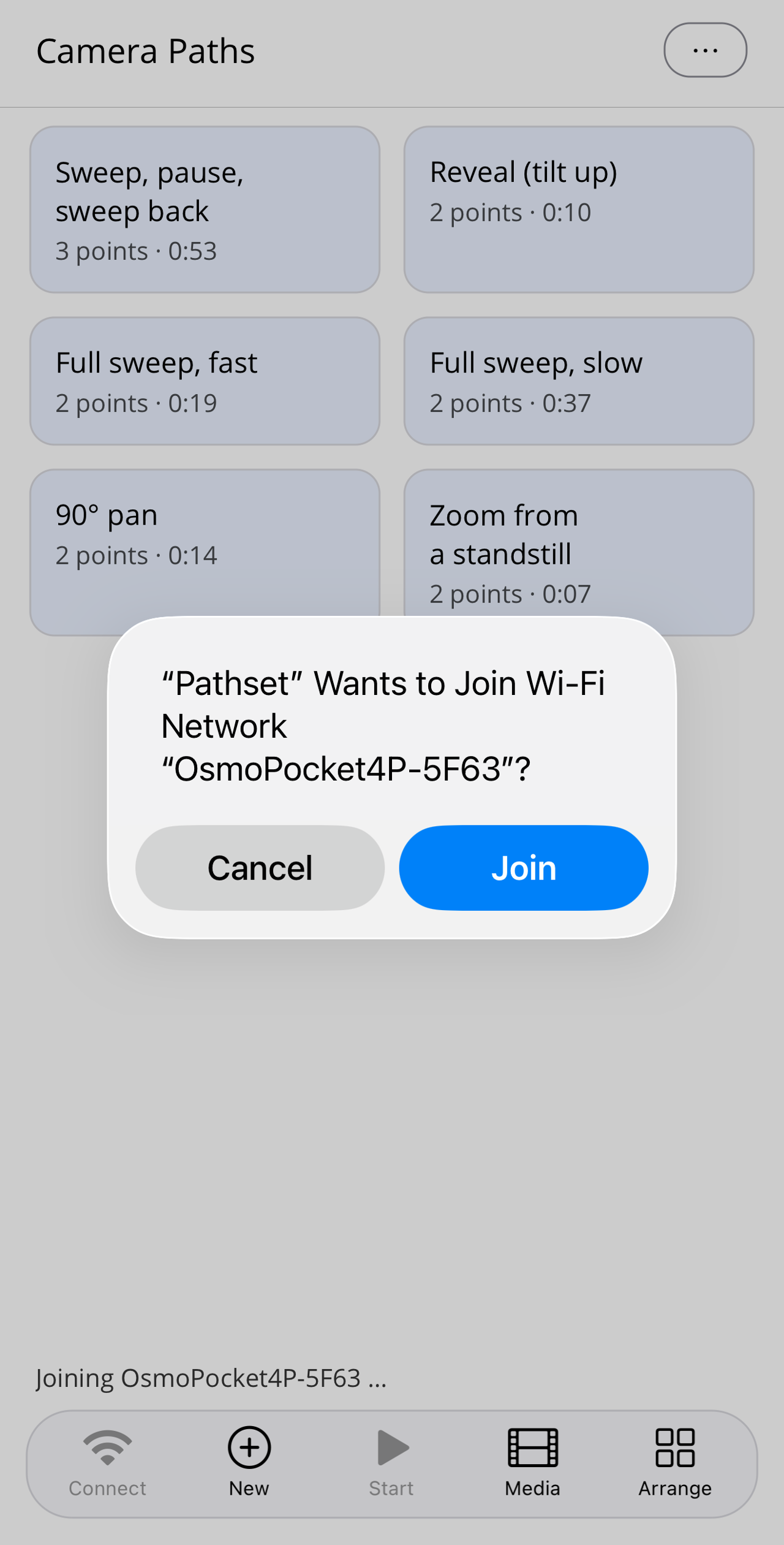
The status bar then shows the camera type: Pathset is connected and ready.
Note: The camera's Wi-Fi network has no internet access. iOS asks once when joining; Android shows no Wi-Fi icon for the camera network. Both are normal. Pathset does not store the network permanently.
While in use: The camera is controlled over Wi-Fi. Keep Pathset open (in the foreground) and make sure the connection is good and stable: camera within range, don't switch to another Wi-Fi network. If the app goes into the background or the Wi-Fi drops, control pauses.
If it doesn't work: switch the camera off and on again, then tap "Connect" again. If the search finds nothing, Pathset automatically searches a second time after 5 seconds; after a hard app termination the camera needs a few seconds until it is visible again. Bluetooth must be on, plus the "Local Network" permission (iOS: Settings › Pathset) or "Nearby devices" (Android: Settings › Apps › Pathset).