The home screen: select, start and arrange your camera paths
All your camera paths at a glance: tap a tile to select, start, or rearrange.
The home screen shows your camera paths as tiles. A camera path is a programmed route that the camera later runs automatically.
At the bottom, the bottom bar with five buttons:
| Button | Function |
|---|---|
| Connect | connect to / disconnect from the camera |
| New | create a new camera path (empty or from a template) |
| Start | run the selected path and record while doing so |
| Media library | download and share the videos stored on the camera |
| Arrange | re-order the tiles |
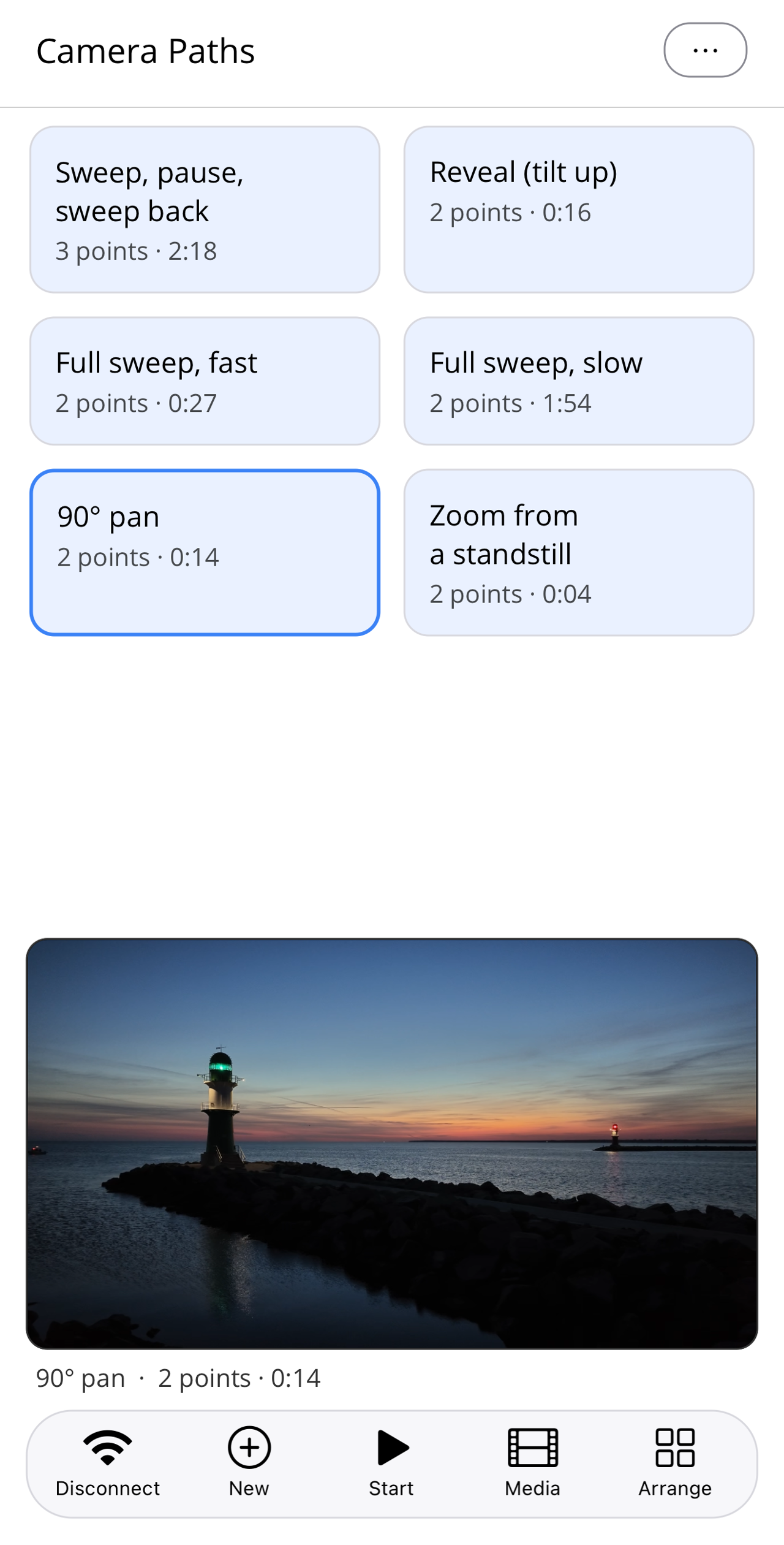
Select a path: tap a tile once, it is highlighted and the Start button becomes active.
Edit a path: tap the already selected tile again, the editor opens (see Editing a camera path).
New path: tap "New" and choose an empty path or one of the built-in templates. A tap immediately creates your own copy, ready to edit.