Starting, following and stopping a timelapse
First a test run, then the recording: how to start a timelapse, follow it and cancel it if needed. The phone stays connected throughout.
Preview
"Preview" in the editor runs through the points briskly one after the other, a few seconds per section: a test run without recording. First an orange band shows "Approach to point 1 – not part of the timelapse", then a green band, e.g. "Preview: point 2 of 3". "Stop" cancels the preview.
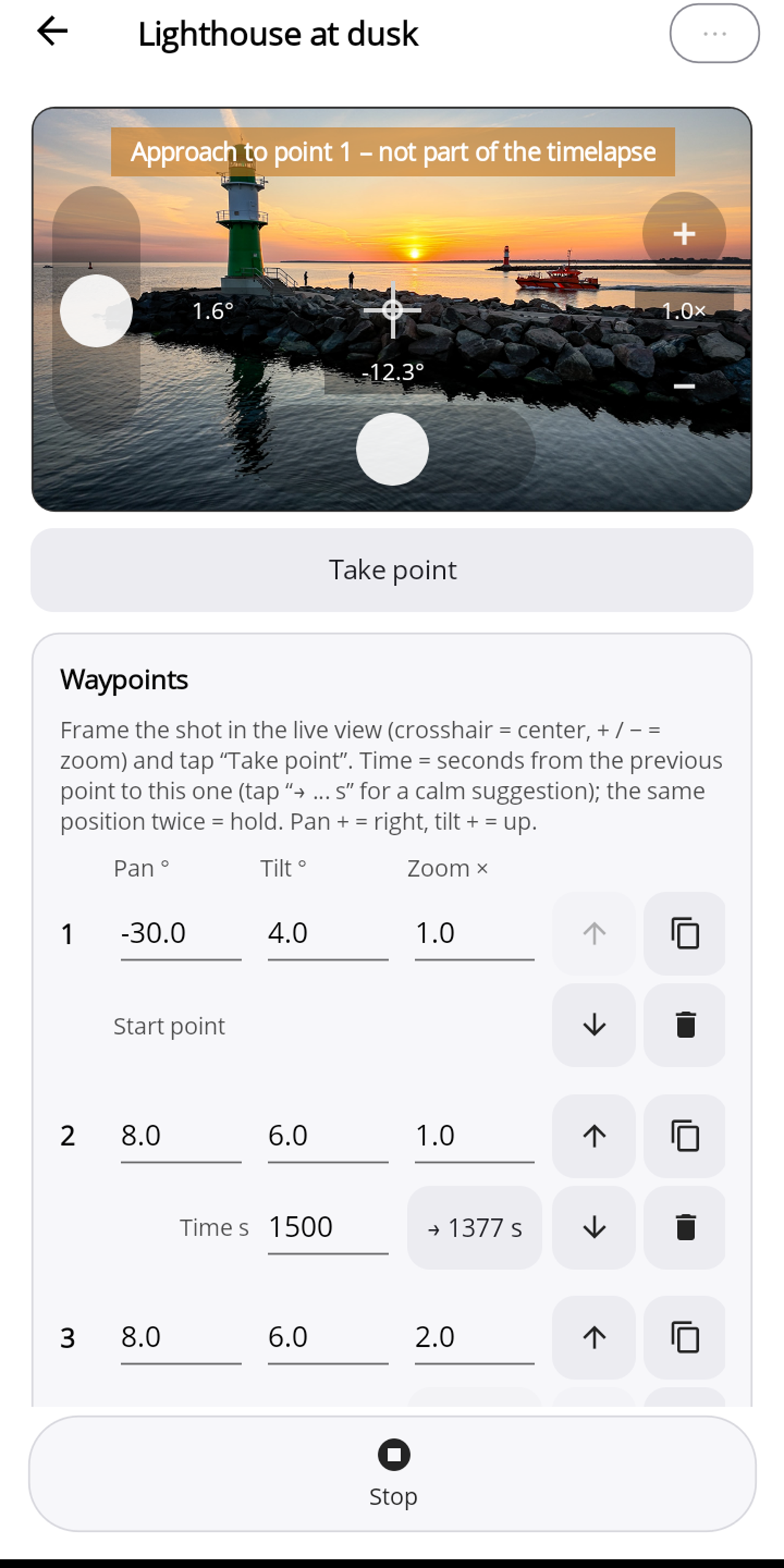
Starting a timelapse
- Select a tile and tap "Start". Pogimoti asks "Start this timelapse?" and lists points, interval, recording time and video length, together with the note "The phone guides every move: keep it connected to the camera and don't close the app until the end." Confirm with Start.
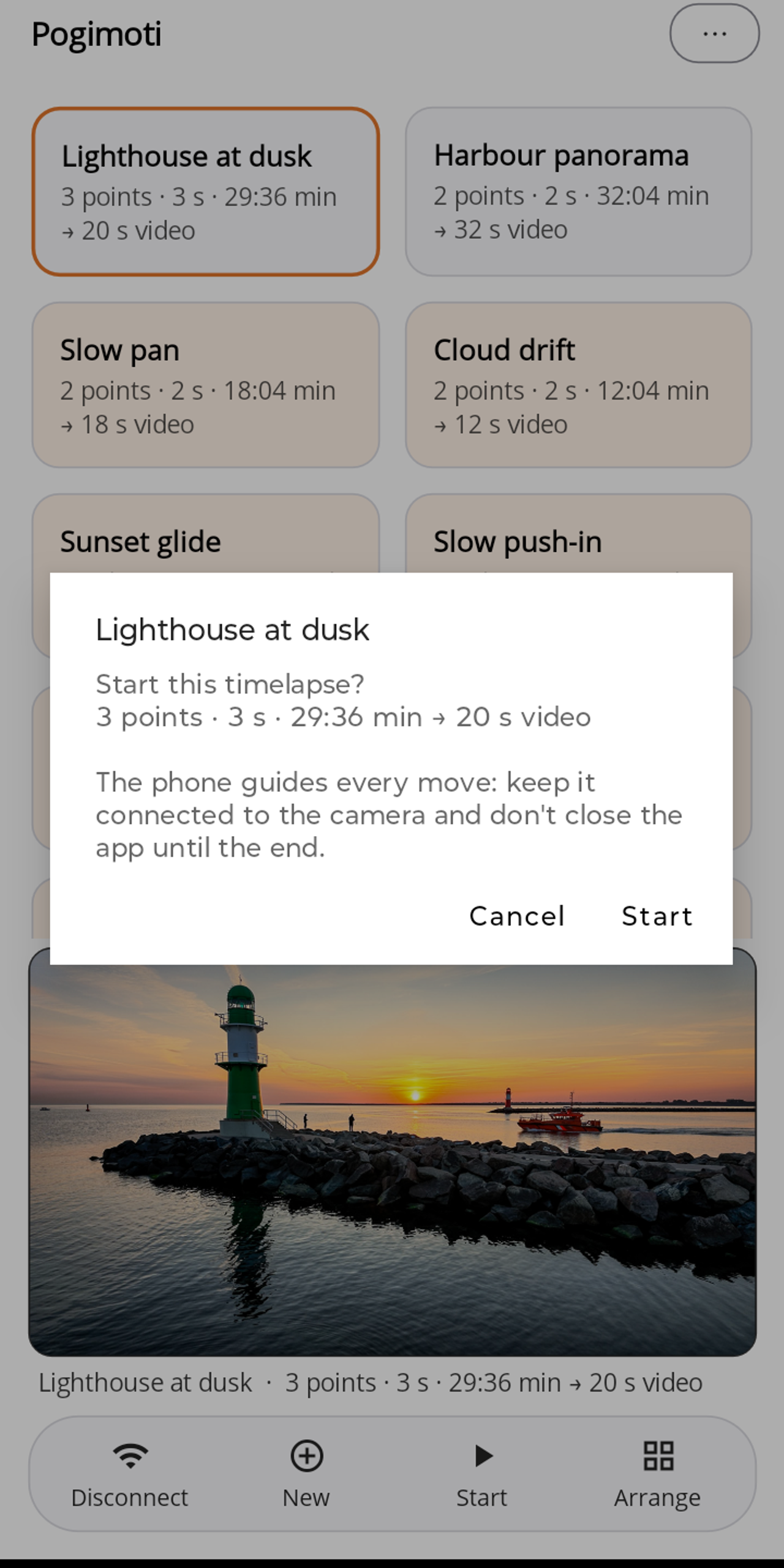
The prompt before the start: the phone stays connected until the end. - The sequence: "Centering the gimbal …" → "Driving to point 1 …" → "Setting up the camera …" → "Syncing with the camera …". While syncing, the gimbal stands still for a few seconds at the beginning.
- Then the line below the live view shows the progress, e.g. "Frame 12/592 · 29:00 left". In the bottom bar only Stop remains active. On Android the notification shows the same: first "Preparing timelapse · Lighthouse at dusk", then "Timelapse running · Frame 15/592".
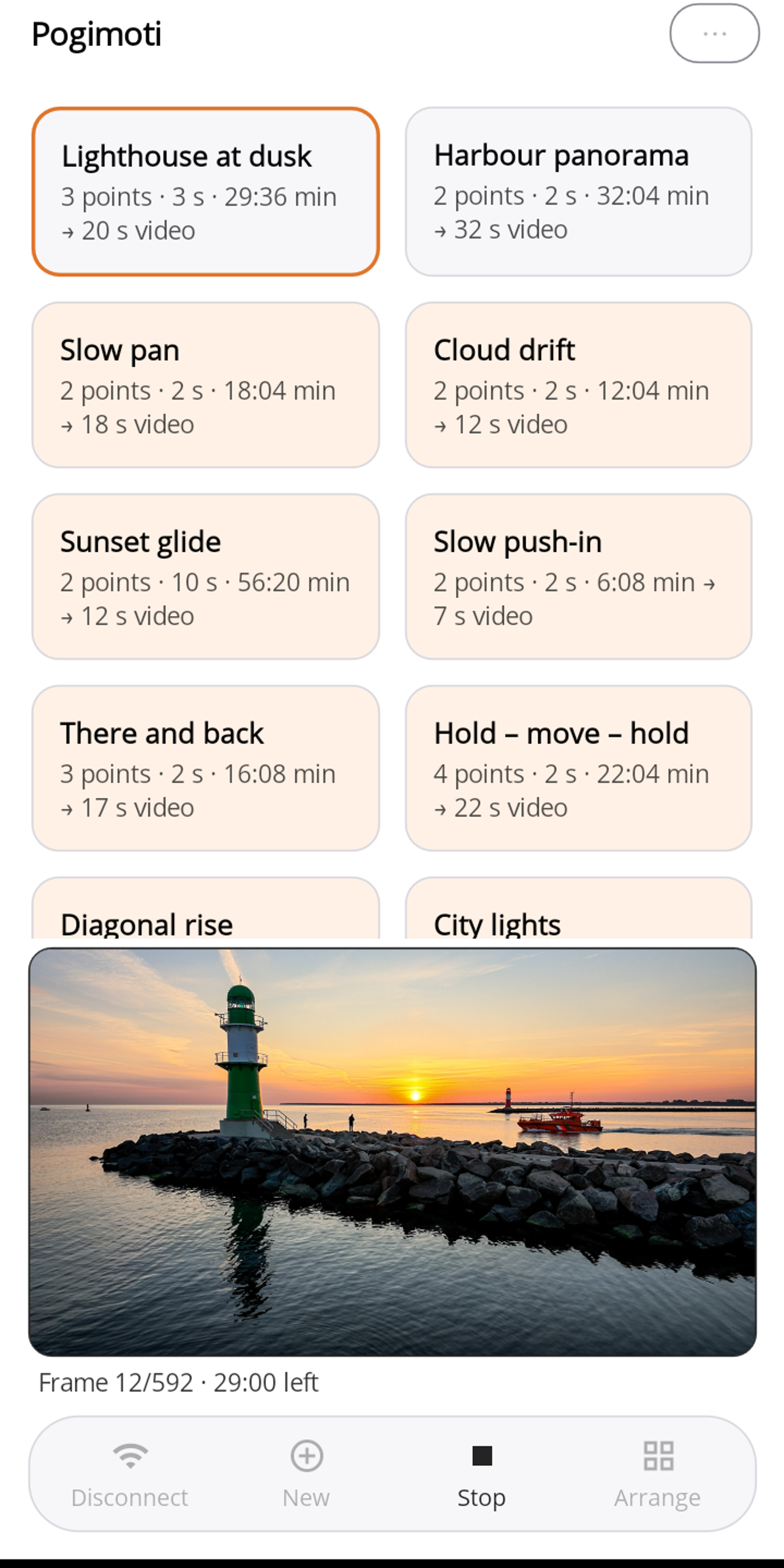
Running timelapse: frame, remaining time and the Stop button. - At the end Pogimoti reports, for example, "Finished — 250 frames. The video is on the camera." The camera is switched back to video mode.
During the recording
The phone stays connected: Pogimoti guides every move between two frames. Please keep the phone within range of the camera and do not close the app.
Android: the screen may turn off and you can use other apps. A notification shows the progress, for example "Timelapse running · Frame 15/592", and keeps the move running in the background. Do not swipe Pogimoti away from the list of recent apps.
iPhone: iOS does not let apps keep running in the background. Pogimoti therefore keeps the screen on during the recording; please leave the app open, do not lock the iPhone and do not switch to another app. For long moves, connect the iPhone to a charger or power bank.
- Stop cancels at any time ("Stopping …" → "Stopped.").
- Connection briefly lost: Pogimoti reconnects by itself ("Connection lost — reconnecting …") and carries on; the camera keeps recording in the meantime. If that fails, the app reports "Connection lost — the move was stopped. The camera may still be recording; stop it on the camera."
The videos are on the camera's memory card. Pogimoti has no media library: transfer the videos with the manufacturer's app or via the memory card.