Planning a move: waypoints, time and interval
Set up waypoints in the live view, choose times and interval, and check the result before the recording starts.
A second tap on a selected tile opens the editor. Everything is saved automatically. A template only becomes your own copy with the first change, e.g. "Cloud drift (copy 1)"; just looking creates nothing.
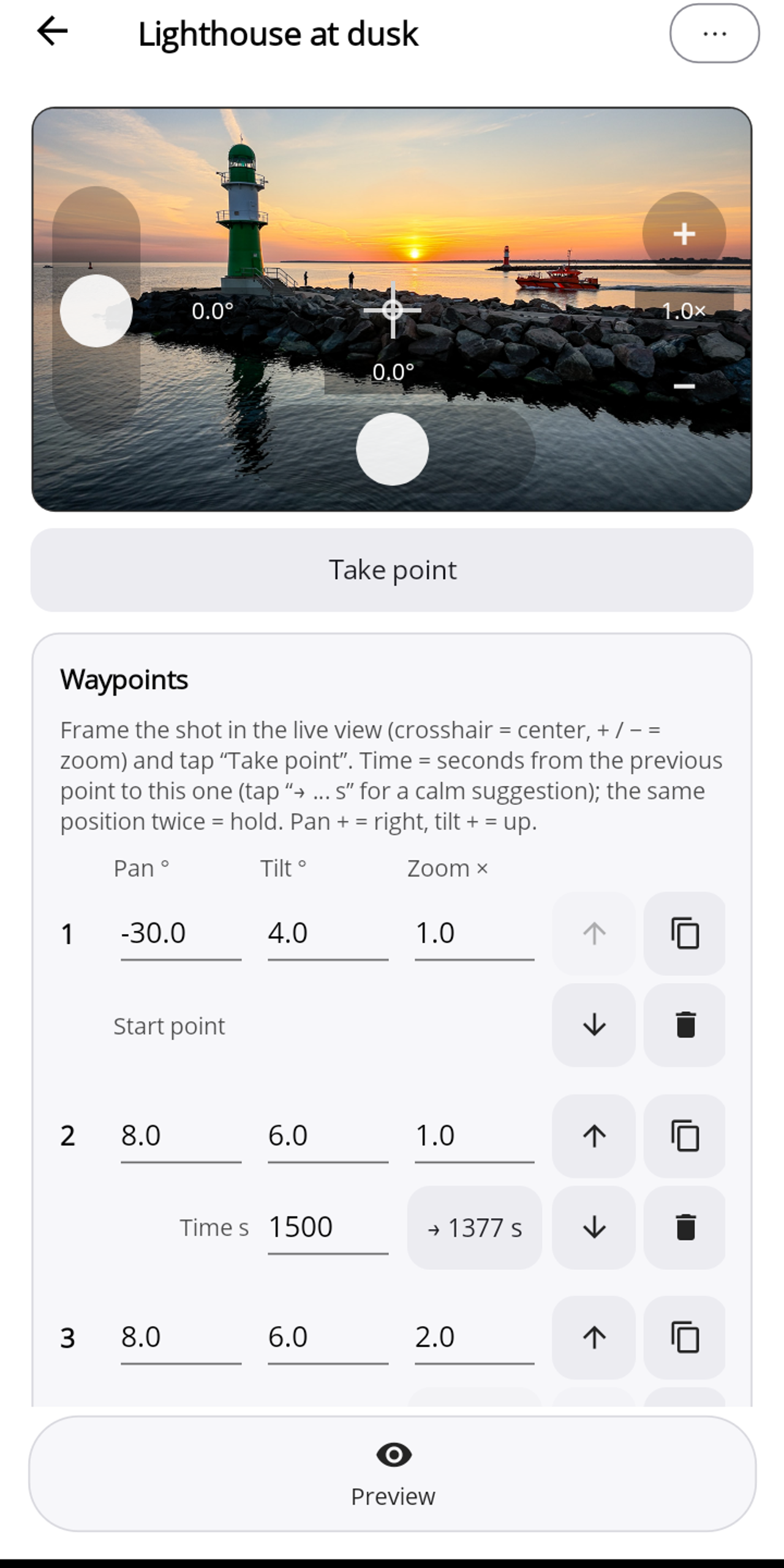
Live view and centring
- Vertical slider on the left: tilt.
- Horizontal slider at the bottom: pan.
- + / − on the right: zoom, hold to zoom.
- The current values are shown in the image. Tap the crosshair = centre.
Centring: when the editor first opens and before every preview and every start, the Luna briefly turns to its left stop and then to the front. This takes a few seconds; that way Pogimoti reliably knows the orientation (see Help).
All angles refer to the centred position (pan 0°, tilt 0° = straight ahead). Pan + means right, tilt + means up.
Waypoints
"Take point" adds the current position including zoom as a new waypoint; there is no limit to the number of points. Every point has two lines:
- at the top Pan °, Tilt ° and Zoom ×,
- below it Time s: the seconds from the previous point to this one. Next to it is the suggestion, e.g. "→ 121 s"; tap to apply it. If it is dimmed, the time already fits (more under Timing).
To the right of each point, the arrows move it up or down, the copy icon duplicates it and the bin deletes it. The first point is the start point and has no time. The same position twice in a row makes a hold.
Interval, move time and result
- Interval in seconds, freely selectable from 0.5 s: the gap between two frames.
- Move time: the sum of all times.
- Soft transitions (switch, on by default): the move eases in and out at the start, the end, holds and turns.
The result line does the maths, for example at 1 s interval and 4:10 min move time: "Recording 4:23 min (the move plus 13 s steady start and end — the camera shows this total) → 264 frames, 8.8 s video. Gimbal moves up to 2.8 °/s in the video."
Notes in the editor
- Too fast: "More than 3 °/s in the video looks hectic …" Zoom counts too: at 2× every degree looks twice as fast. A longer time or smaller angles help.
- Very slow sections: "The Luna cannot move a little in every frame there …" The image then moves in only part of the frames (see Timing).
- Lens change at 3× (Luna Ultra only): if a move zooms across this value, a visible jump is possible.
Editor ⋯: Rename · Duplicate move · Show on start screen · Delete move.
Use "Preview" to check the move before recording, see Starting a timelapse.