Planning a move: waypoints, interval and duration
Set waypoints in the live view, choose interval and duration, check the speed and try the move in a quick test run.
The title at the top is the move's name. Everything is saved automatically; there is no save button. If you open a template, Lapset creates your own copy of it (e.g. "Sunset glide (copy 1)"); the template itself stays unchanged.
Setting waypoints
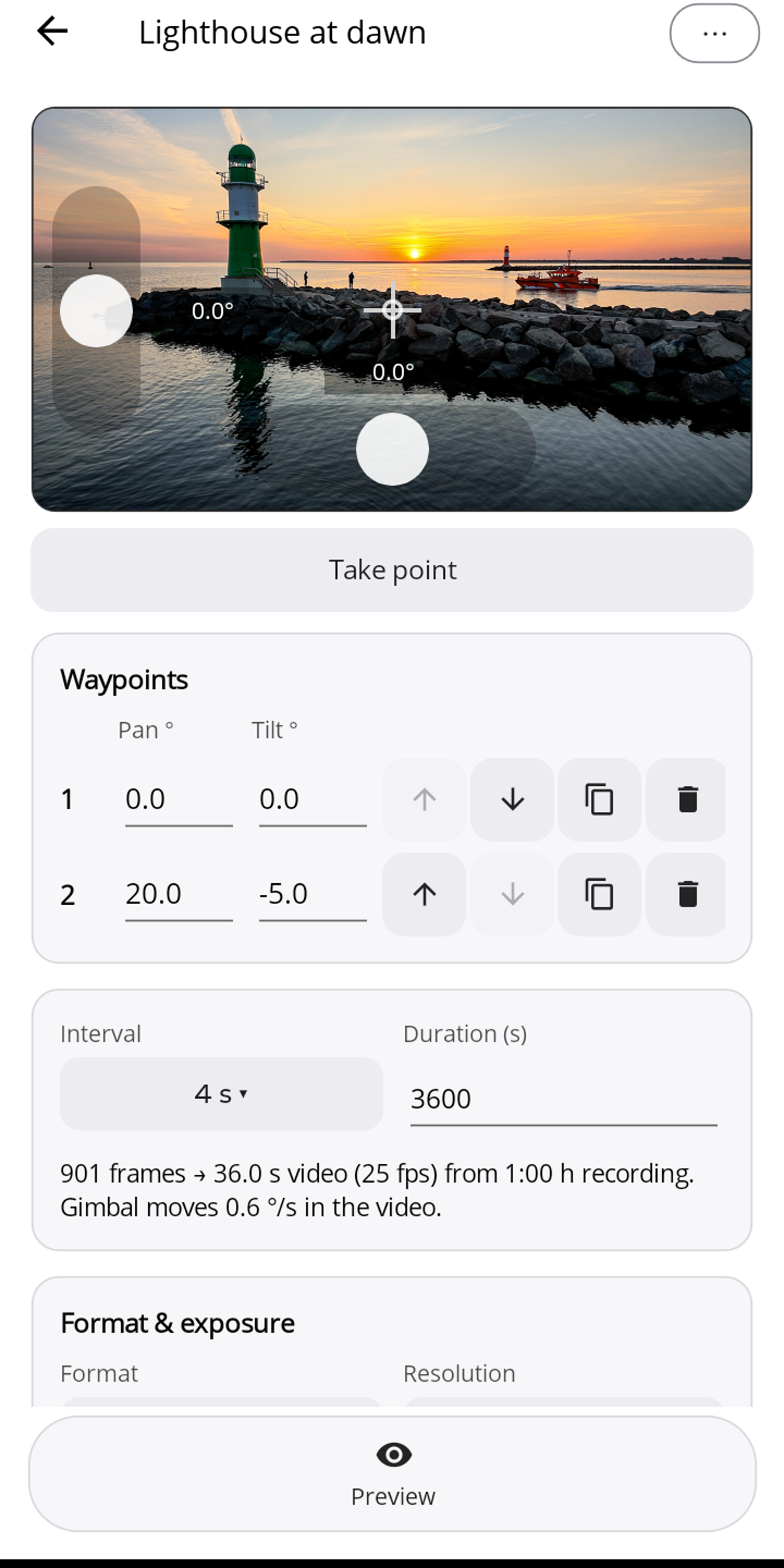
- Tilt: the vertical slider on the left of the live view.
- Pan: the horizontal slider at the bottom of the live view.
- The current values are shown next to them in degrees. Tapping the crosshair centres the camera: forward and level.
All angles refer to the centred position (pan 0°, tilt 0° = straight ahead, level). Before every preview and every start, Lapset centres the gimbal itself, so the points always apply relative to "straight ahead".
"Take point" adds the current position as a waypoint. You can set at most four points, a limit of the camera; at four points the button is greyed out.
Neighbouring waypoints need at least 2° between them in pan or tilt, otherwise the camera rejects the move.
In the waypoint list you can type pan and tilt as numbers. Each row has buttons for moving (↑ ↓), duplicating and deleting.
Interval and duration
You pick the interval from the steps of the connected camera (typically 0.5 s to 60 s) and enter the duration in seconds, freely up to 10 hours. With a long manual exposure the short steps are not selectable (see Format and exposure).
The result line does the maths, for example: "901 frames → 36.0 s video (25 fps) from 1:00 h recording. Gimbal moves 0.6 °/s in the video." The frame count is duration ÷ interval + 1, because the camera exposes immediately and then once per interval. The video length is frame count ÷ frame rate; Lapset uses the frame rate chosen under Format and exposure, or 30 fps if none is set.
Speed: above 3 °/s in the finished video, Lapset shows the note "More than 3 °/s in the video looks hectic: the whole move is squeezed into the short clip. A longer duration or smaller angles help." Rule of thumb for calm timelapses: 1–3 °/s in the video.
Roll and zoom cannot be controlled in a timelapse: the camera only moves pan and tilt.
Editor ⋯ menu: Rename · Duplicate move · Show on start screen · Delete move.
Preview
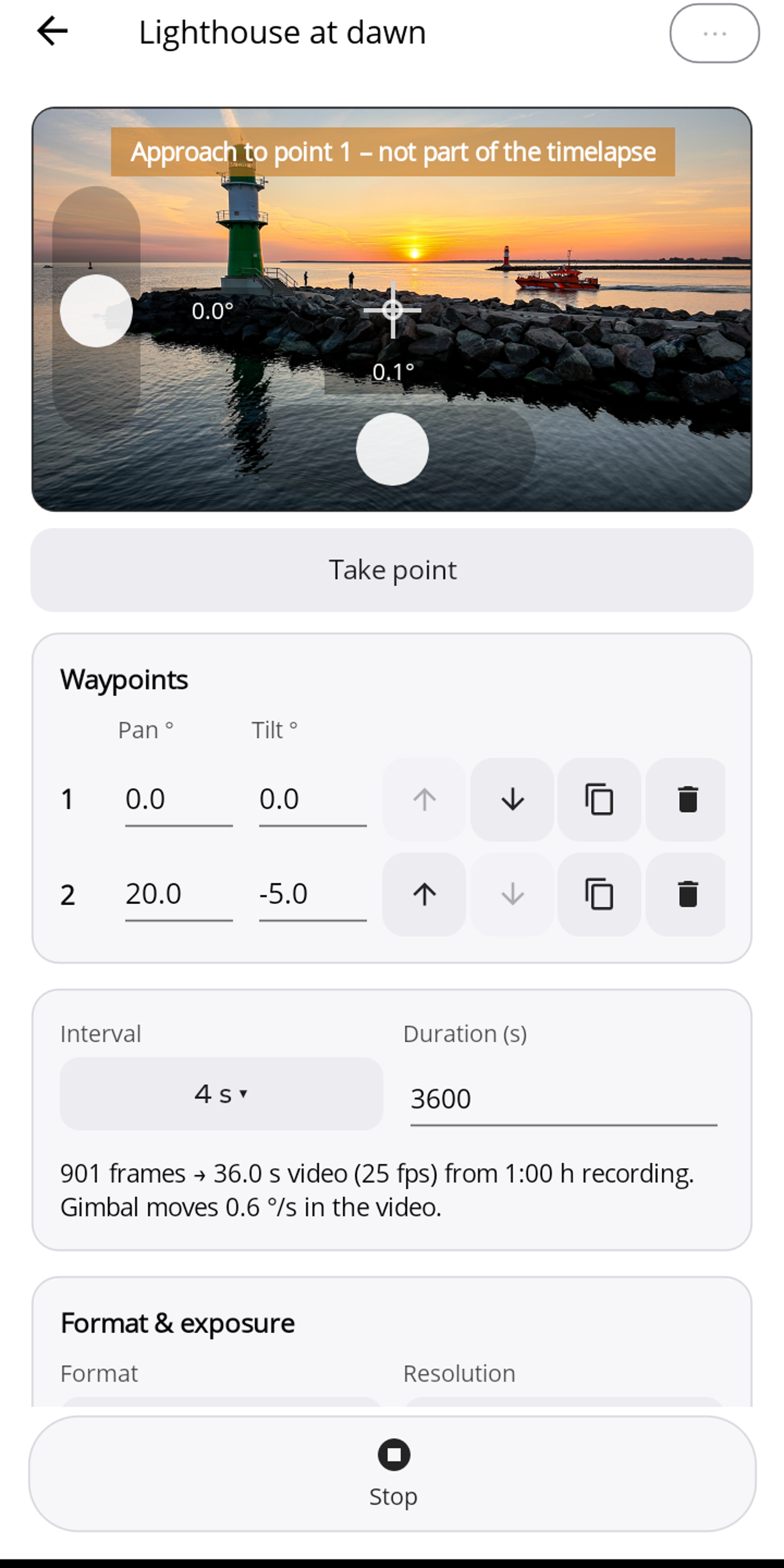
"Preview" in the editor's bottom bar runs through the points briskly one after the other, not at the later timelapse speed. As a quick test run (a few seconds per segment) it shows the start, the end and the framing; nothing is recorded.
- An orange band in the live view shows "Approach to point 1 – not part of the timelapse".
- Then a green band shows the progress, e.g. "Preview: point 2 of 2".
- "Stop" cancels the preview.