Starting, following and stopping a timelapse
Choose a move, tap Start, put the phone away: the camera records on its own. How to follow, take over and stop the timelapse.
- Select a tile and tap "Start". Lapset asks: "Start this timelapse on the camera? … The camera keeps recording on its own; the phone may go to sleep." Confirm with Start.
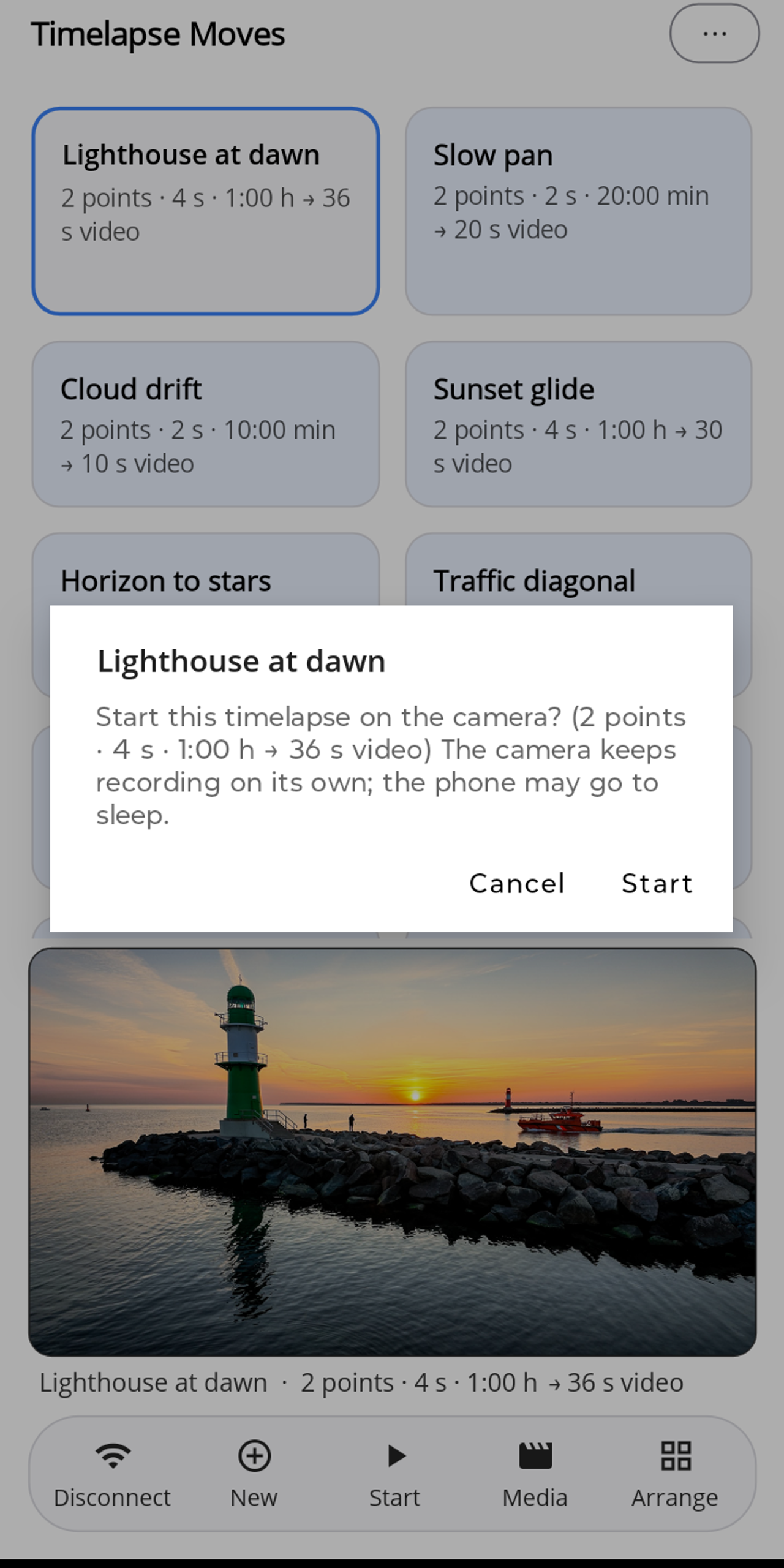
The prompt before the start: afterwards the camera records on its own. - Lapset centres the gimbal ("Centering the gimbal …"), sends the move ("Sending the move to the camera …") and starts it. The camera then needs a few seconds until the first frame; only then does the display start counting.
- The status line shows the progress, e.g. "Recording: frame 11/901 · 59:19 left". The bottom bar only offers Stop, everything else is locked.
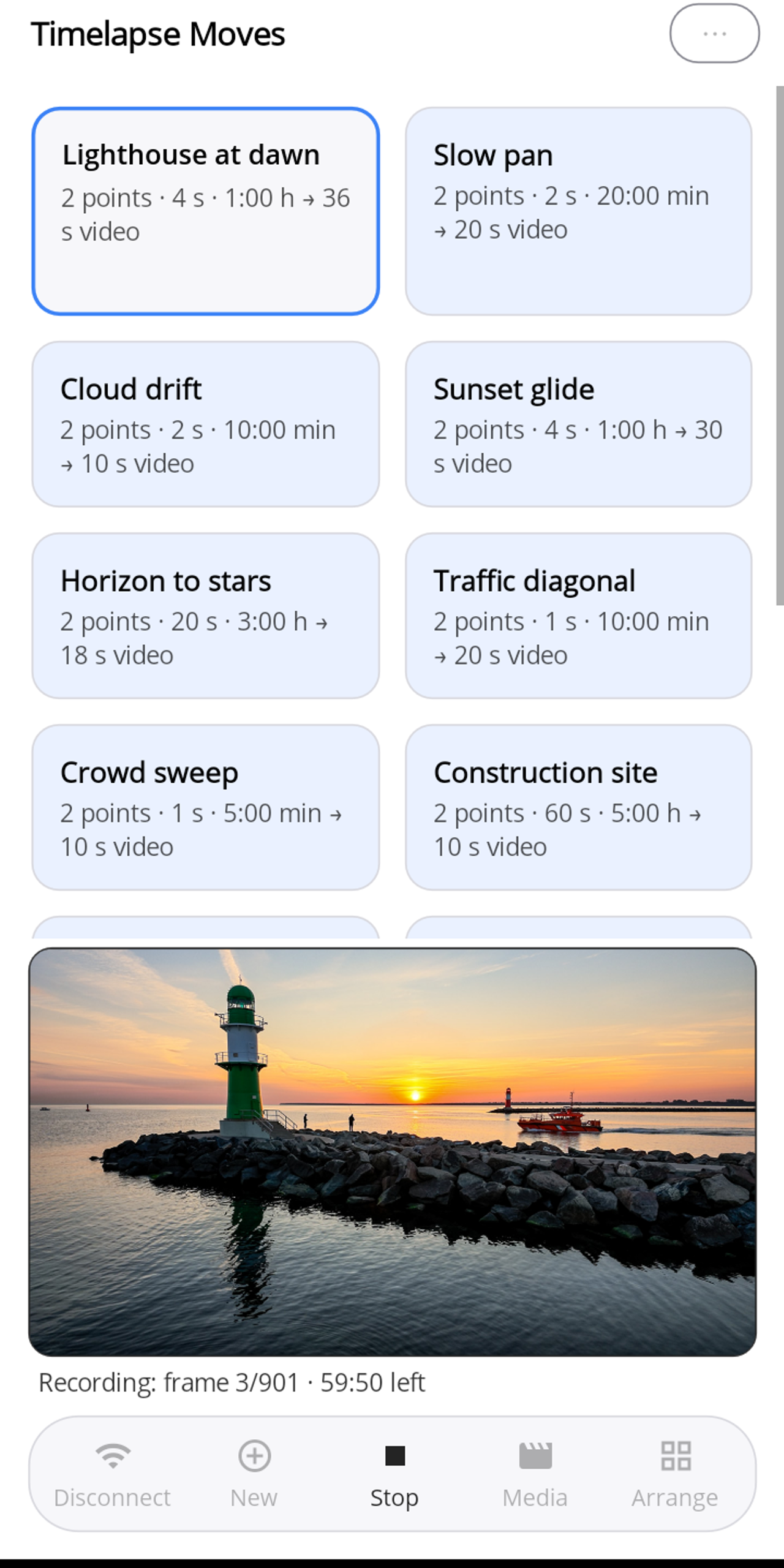
Running timelapse: frame, remaining time and the Stop button. - Your phone is free: screen off, app in the background or closed completely, the camera carries on. If you open Lapset again later and connect, the app recognises the running timelapse ("Timelapse already running on the camera – taking over."), shows frame and remaining time and offers Stop.
- At the end Lapset reports "Finished — 901 frames. The video is on the camera." The camera stops by itself and is then switched back to video mode.
- Stop cancels at any time ("Stopping …" → "Stopped."). The camera then needs a few seconds until it is ready again.