Connecting: iOS and Android
One tap on "Connect": Panset pairs the camera via Bluetooth and switches to its Wi-Fi by itself, on iOS and Android alike.
- Switch the camera on and keep it within range. In Panset, tap "Connect".
- The first time: the camera shows a PIN on its display and asks for confirmation. Confirm there; the app shows the same PIN ("Confirm on the camera display (PIN …)"). From then on the camera knows the app and further connections run without a PIN.
- The app fetches the camera's Wi-Fi credentials via Bluetooth and switches to the camera network by itself:
- iOS: a one-time system prompt to join the network, please confirm.
- Android: a one-time system dialog "Connect device?" or a network selection, please confirm. On first launch Android also asks for the "Nearby devices" (Bluetooth) permission.
- The status runs through: "Pairing …" → "Getting credentials …" → "Connecting to the camera network …" → "Almost done …" → "Connected." This typically takes 10 to 15 seconds.
- "Disconnect" ends the session; the phone returns to its previous Wi-Fi network.
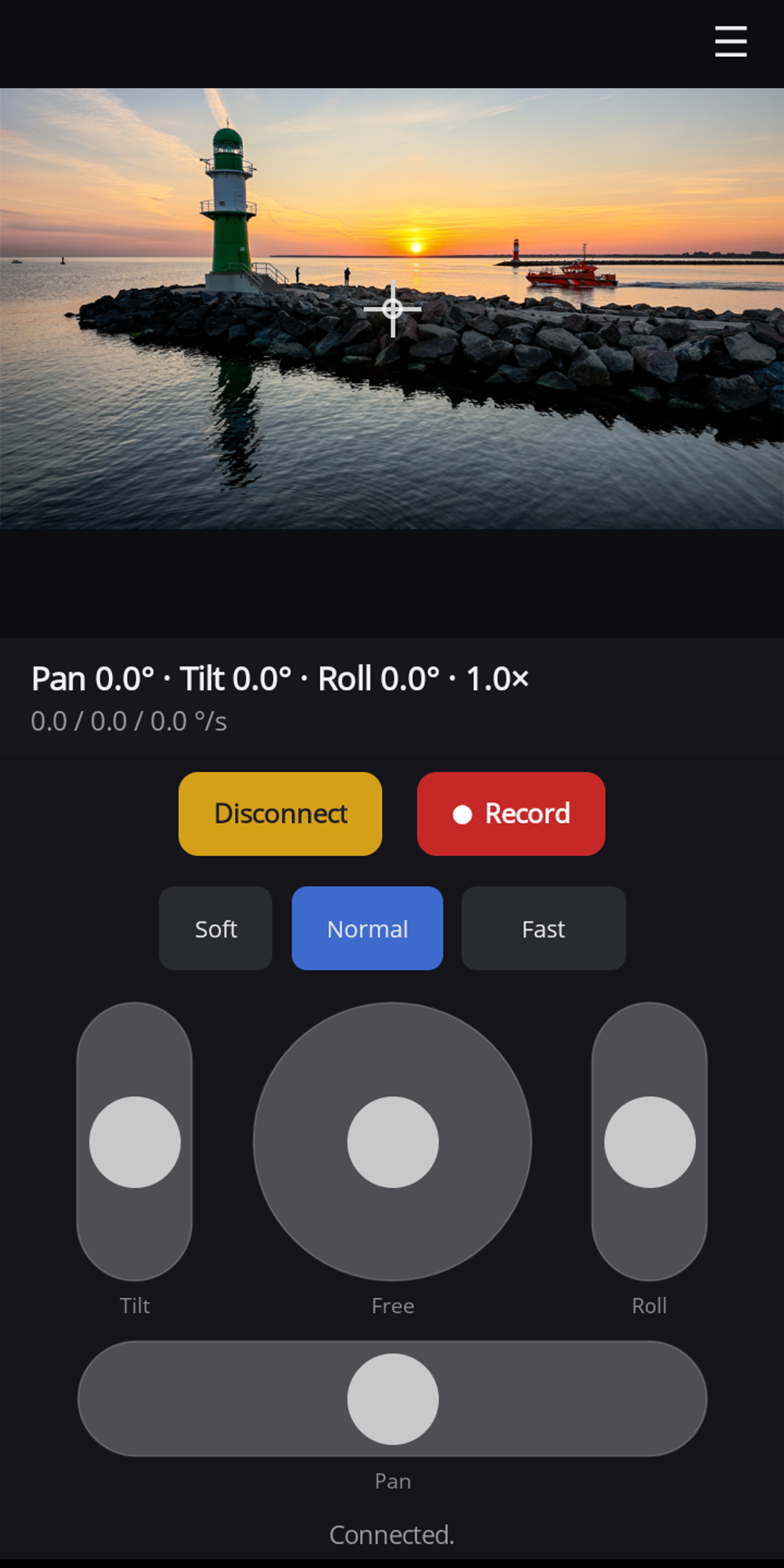
While connected, the display stays on so the phone does not lock in the middle of a pan.
About the camera network: as long as the app is connected, the phone is on the camera's Wi-Fi, which has no internet access. Android shows no Wi-Fi icon for it; that is normal.